Desktop Interface
docs/welcome-tour.md
Overview
This guide covers the current AvyOS desktop interface and daily navigation model.
Session overview
A normal session looks like:
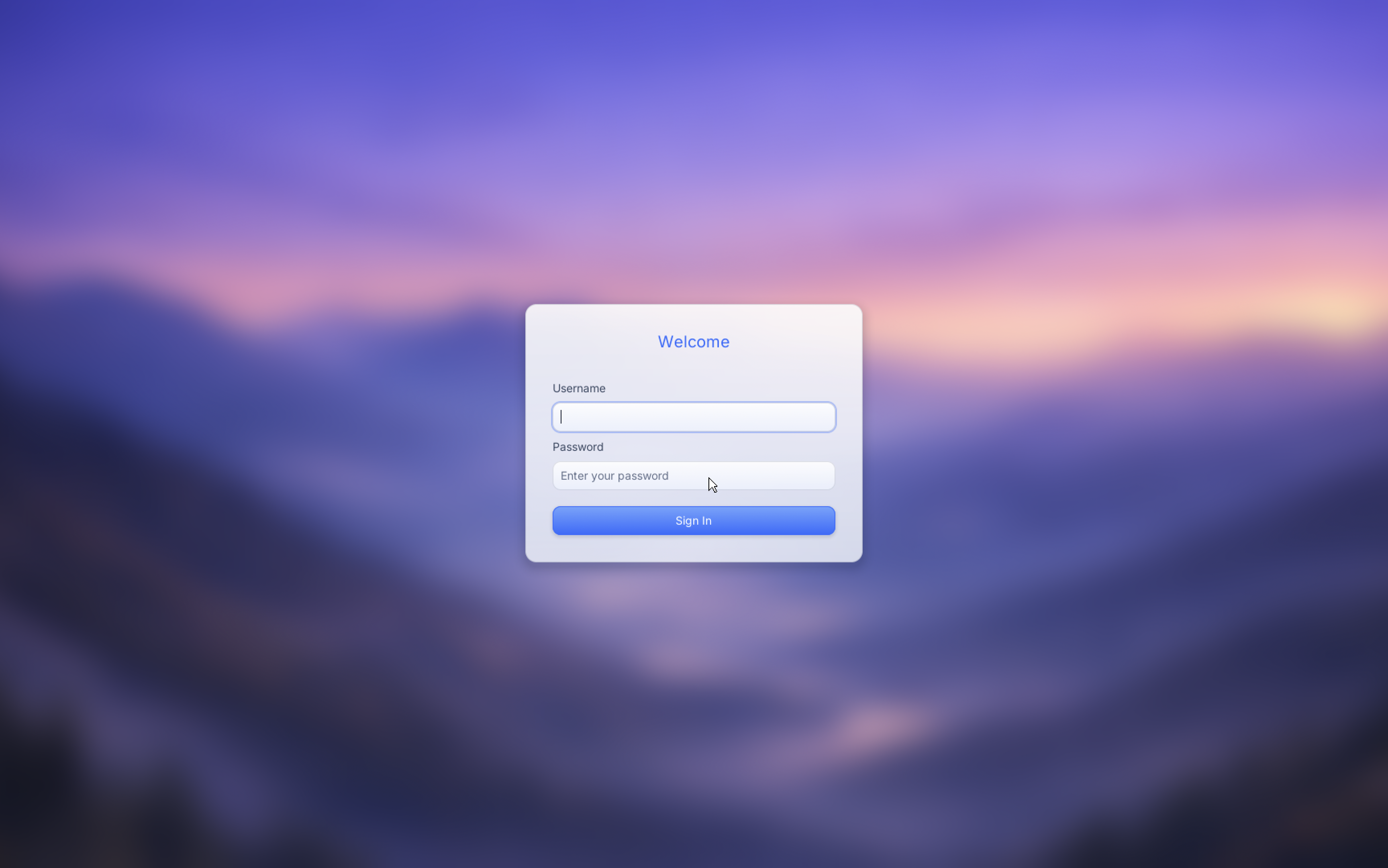
- login screen
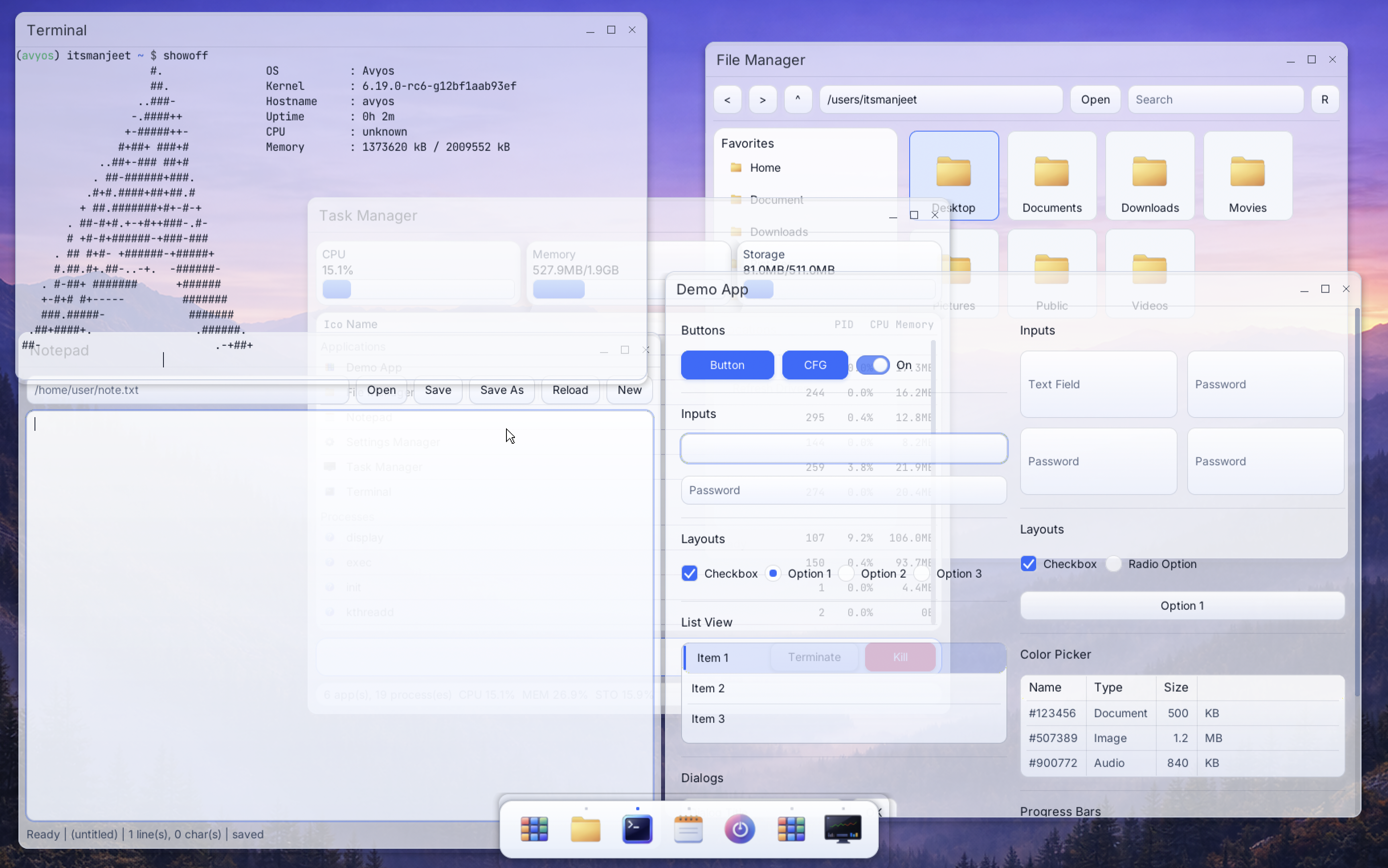
- desktop shell/compositor
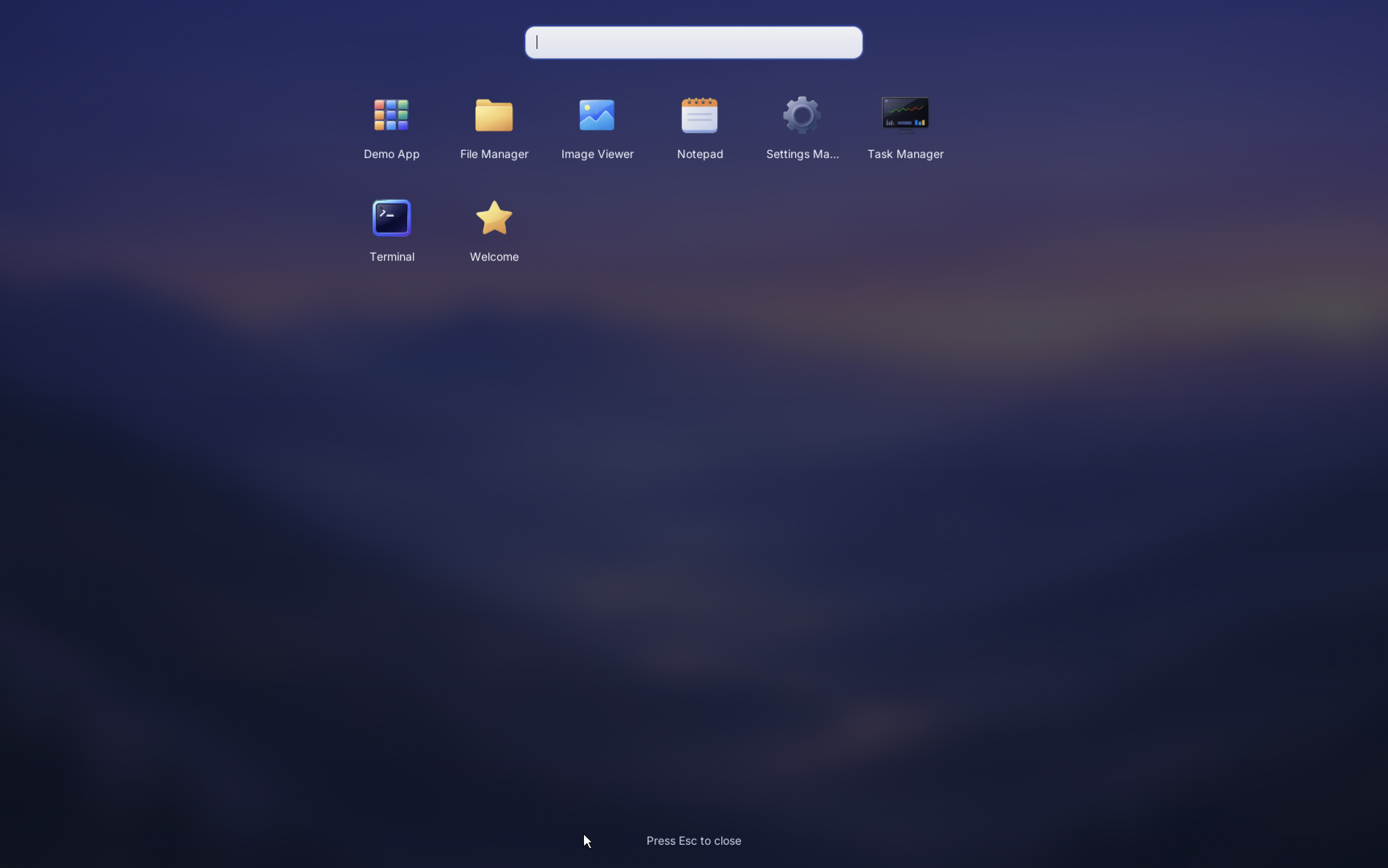
- app menu and pinned applications
- floating and tiled application windows
Main UI areas
Background layer
- provides wallpaper and right-click desktop menu
- exposes quick actions (app menu, terminal, file manager)
Top-level windowing/compositor
- manages app windows, focus, move/resize behavior
- dispatches keyboard/mouse events to active windows
Dock and app menu
- dock gives quick launch and task switching
- app menu provides searchable app launch access
Core interactions
Open applications
- use app menu
- use dock shortcuts
- use
opencommand for file association launches
Window control
- focus with mouse click
- move/resize using desktop controls provided by compositor
- close/minimize/maximize based on app chrome support
Keyboard shortcuts
Shortcut availability depends on current app and compositor bindings.
Typical desktop shortcuts include launching app menu, terminal, and window-management actions.
First-day checklist
After login, validate:
- display and input are working
- app menu opens
- settings app can be launched
- terminal and file manager open successfully
Screenshots
Login screen:
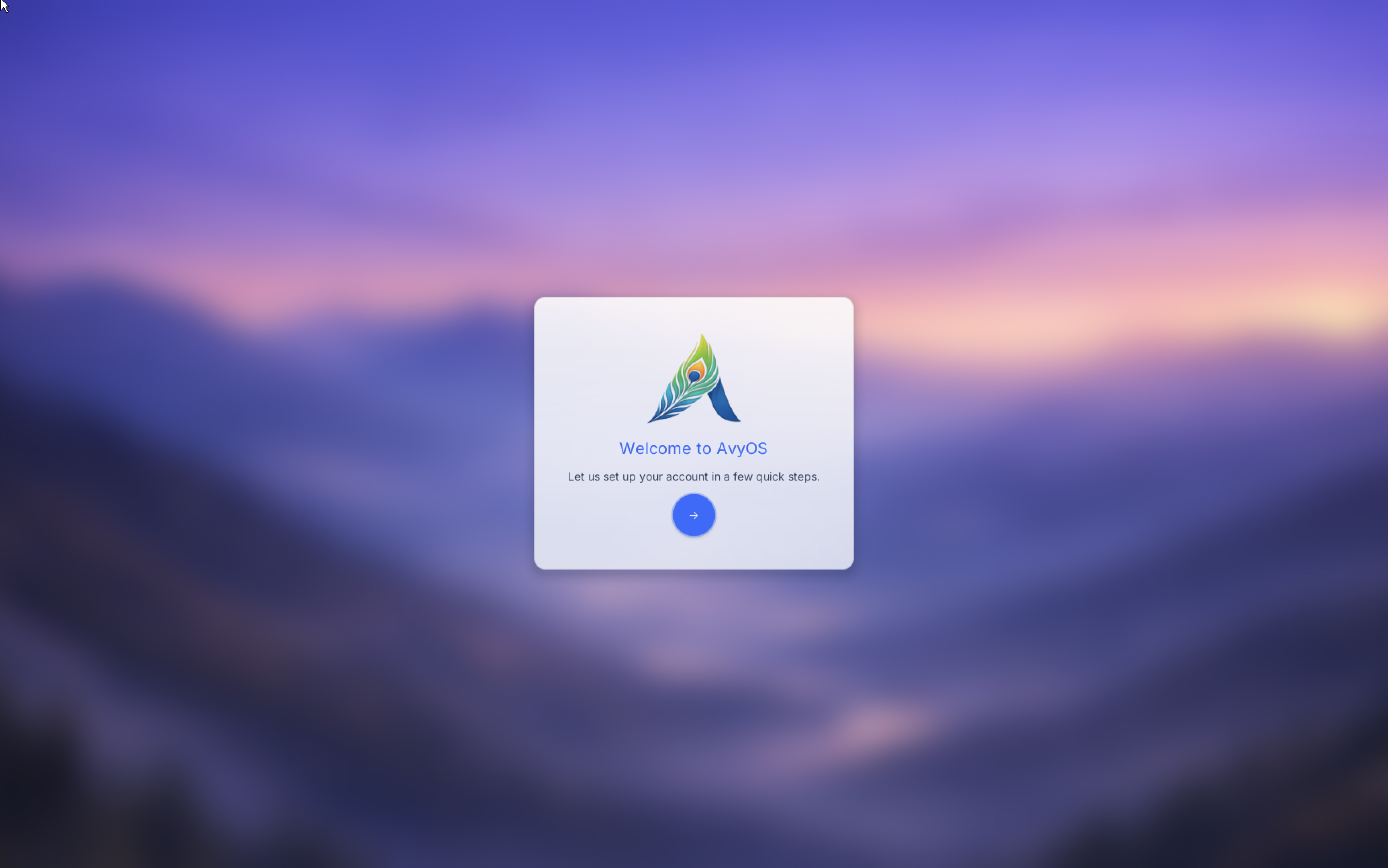
Welcome/OOBE screen:
Desktop interface:
App menu:
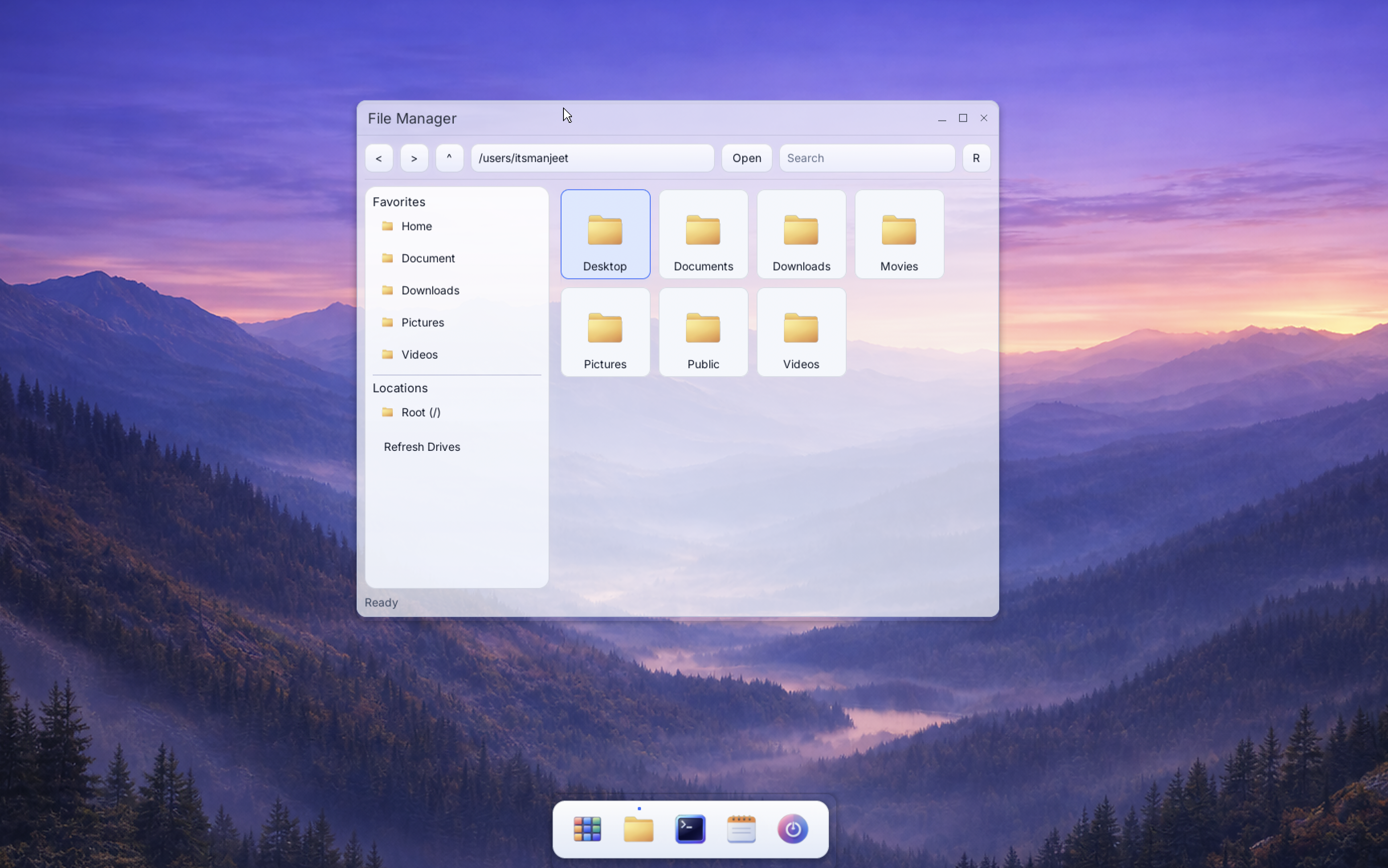
File manager:
Notes
Desktop UX is under active development. Behavior and shortcuts may change across revisions.