Welcome Tour
docs/WELCOME.md
1) Boot to the Welcome Screen
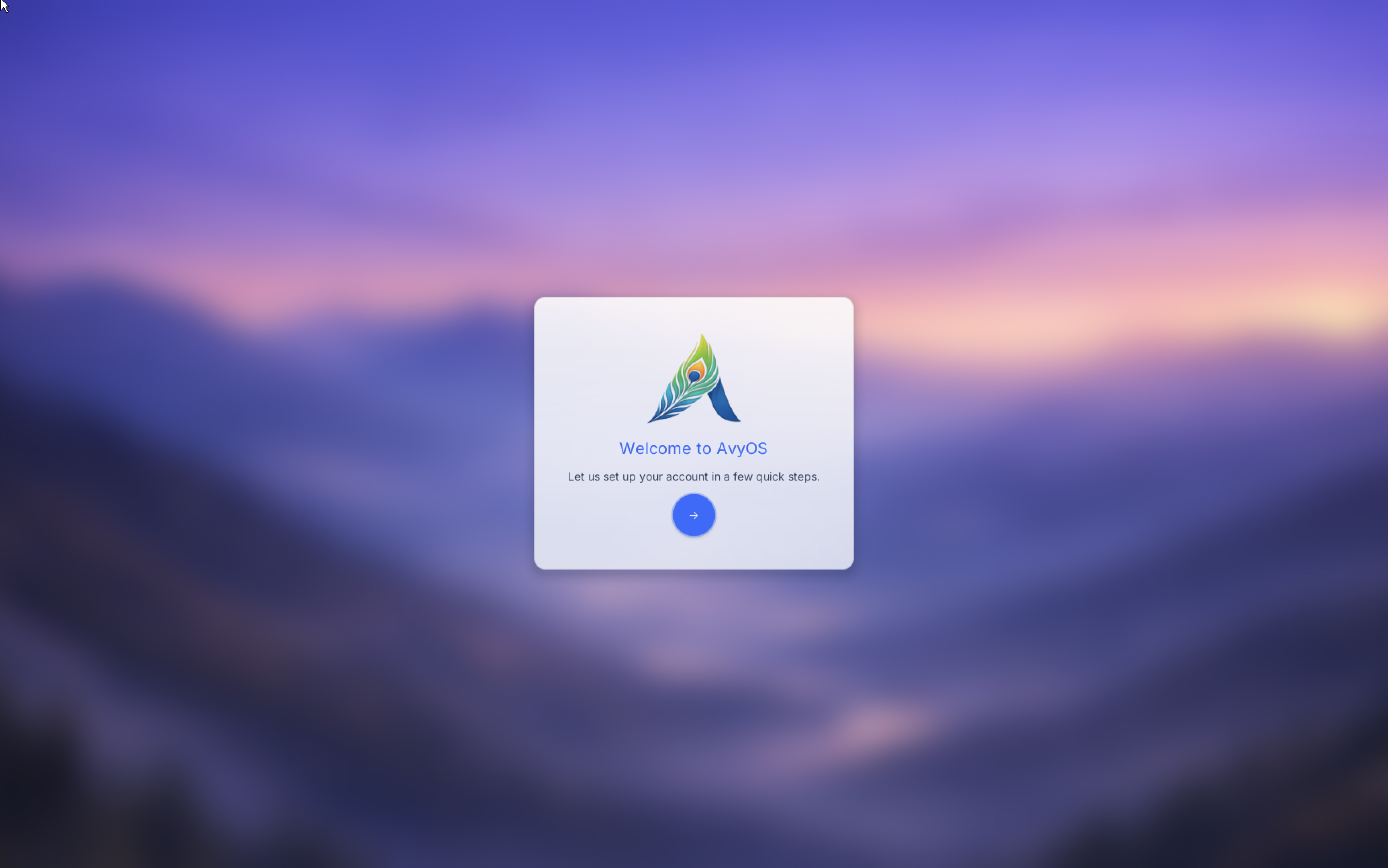
On first boot you’ll see the Welcome Screen:
If your mouse/keyboard doesn’t work
Input problems are usually caused by a host/QEMU configuration issue.
Try these steps:
- Reboot and try again (sometimes QEMU input devices fail to initialize on the first run).
- If you started avyos using the one-command runner (
runimage), try running QEMU manually instead (see the QEMU commands inREADME.md→ “Try avyos”). - If it still doesn’t work, please open an issue:
- https://github.com/itsManjeet/avyos/issues
When filing an issue, include:
- your host OS (Linux/macOS/Windows), CPU architecture
- how you launched avyos (
runimageor manual QEMU command) - QEMU version
- whether VNC is enabled
- any logs or console output you can capture
2) Create a User Account
Next, avyos prompts you to create one or more user accounts:
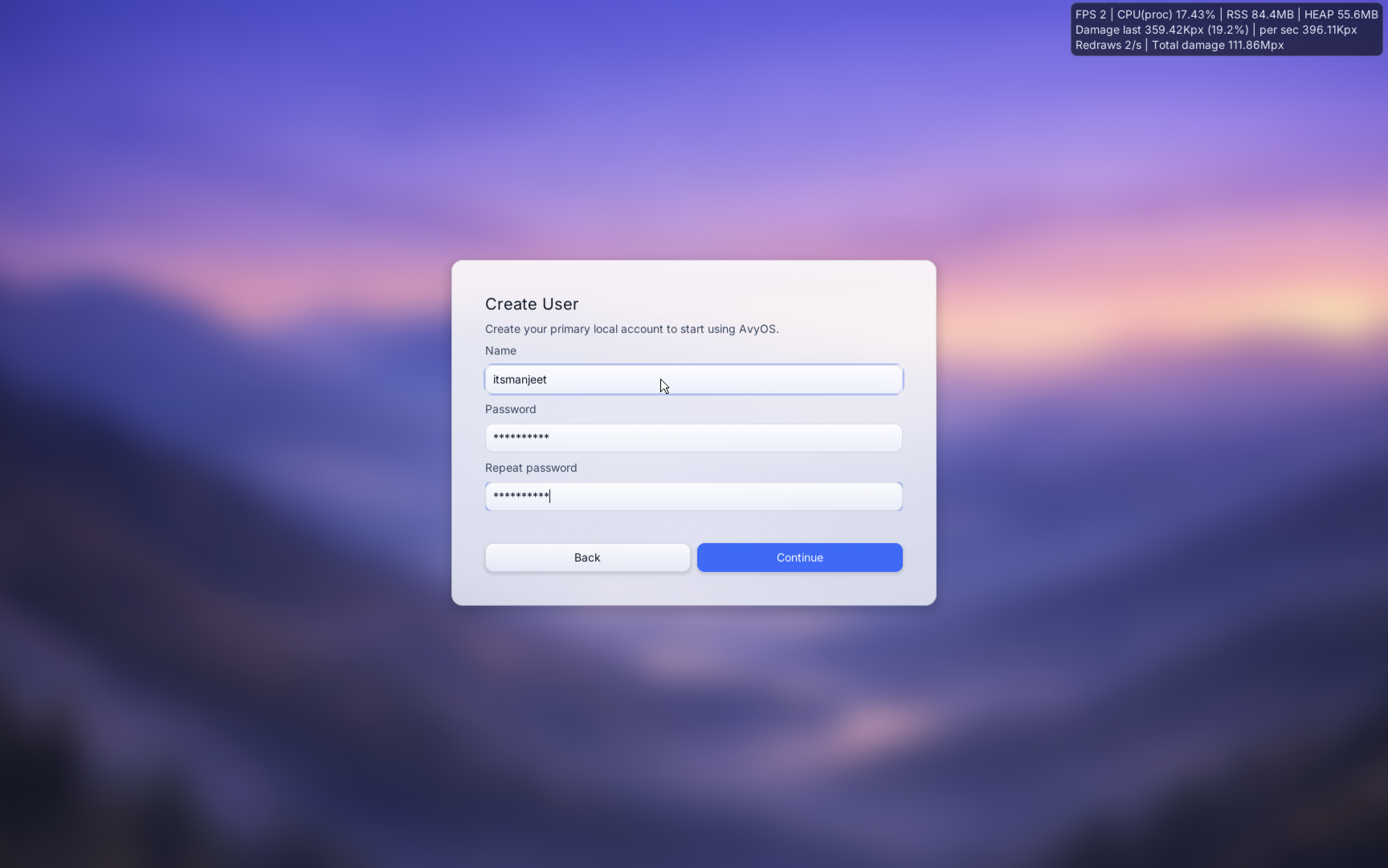
This account is what you’ll use to log into the desktop.
Fallback superuser account (for debugging)
If you get stuck or need to debug the system, there is a fallback account:
- username:
admin - password:
admin - note: this is the superuser account (UID 0) intended for troubleshooting and development.
3) Log In
After account creation, you’ll reach the Login Screen. Select your user and enter the password.
If login fails:
- verify you’re selecting the correct user
- try the fallback
admin/admincredentials to confirm the system is healthy
4) Desktop Interface
After login you’ll see the desktop:
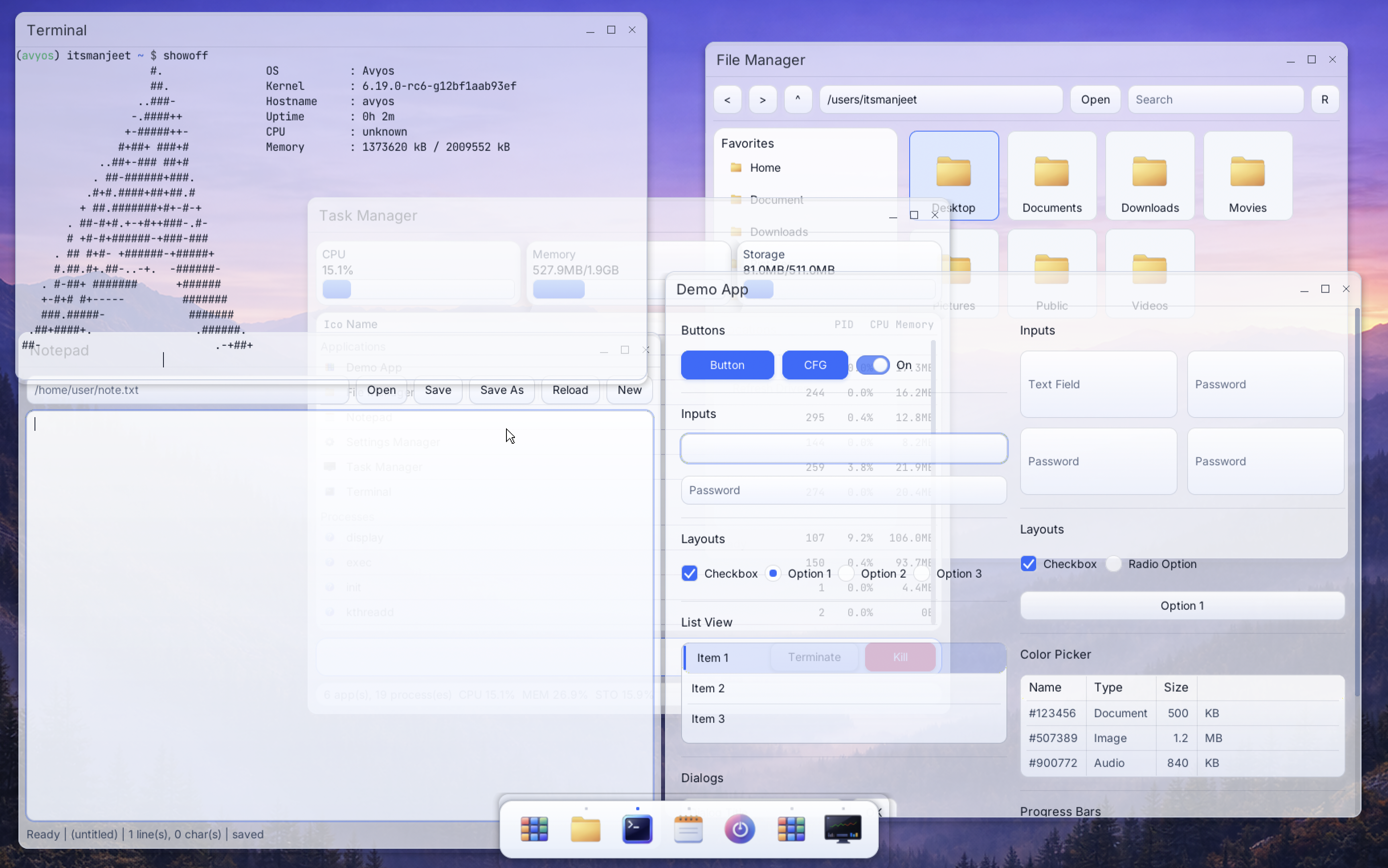
What you’re looking at
- Wallpaper/background
- Dock at the bottom:
- App Launcher
- Pinned apps
- Power button (Lock / Reboot / Power off)
5) Basic UI actions
Desktop actions
- Right click on the desktop to open the context menu (common actions and shortcuts).
App launcher
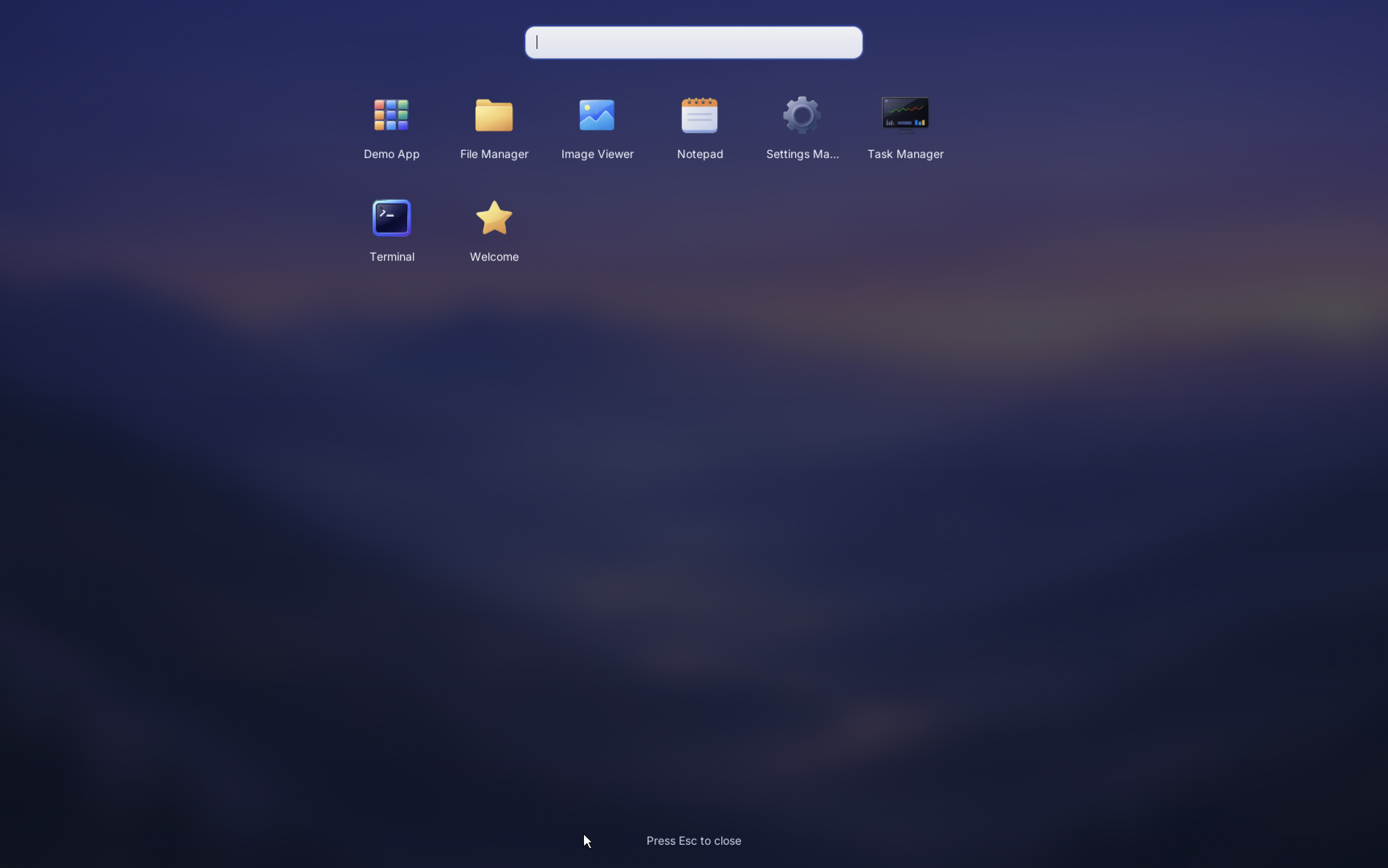
- Click the App Launcher icon in the dock to list installed apps.
- Select an app to launch it.
Dock app icon actions
- Left click a dock icon to focus/launch.
- Right click an app icon in the dock for common actions:
- Close
- Pin / Unpin
- Open new window (when supported)
Power menu
Use the Power button on the dock to:
- Lock the session
- Reboot
- Power off
6) Terminal quick start
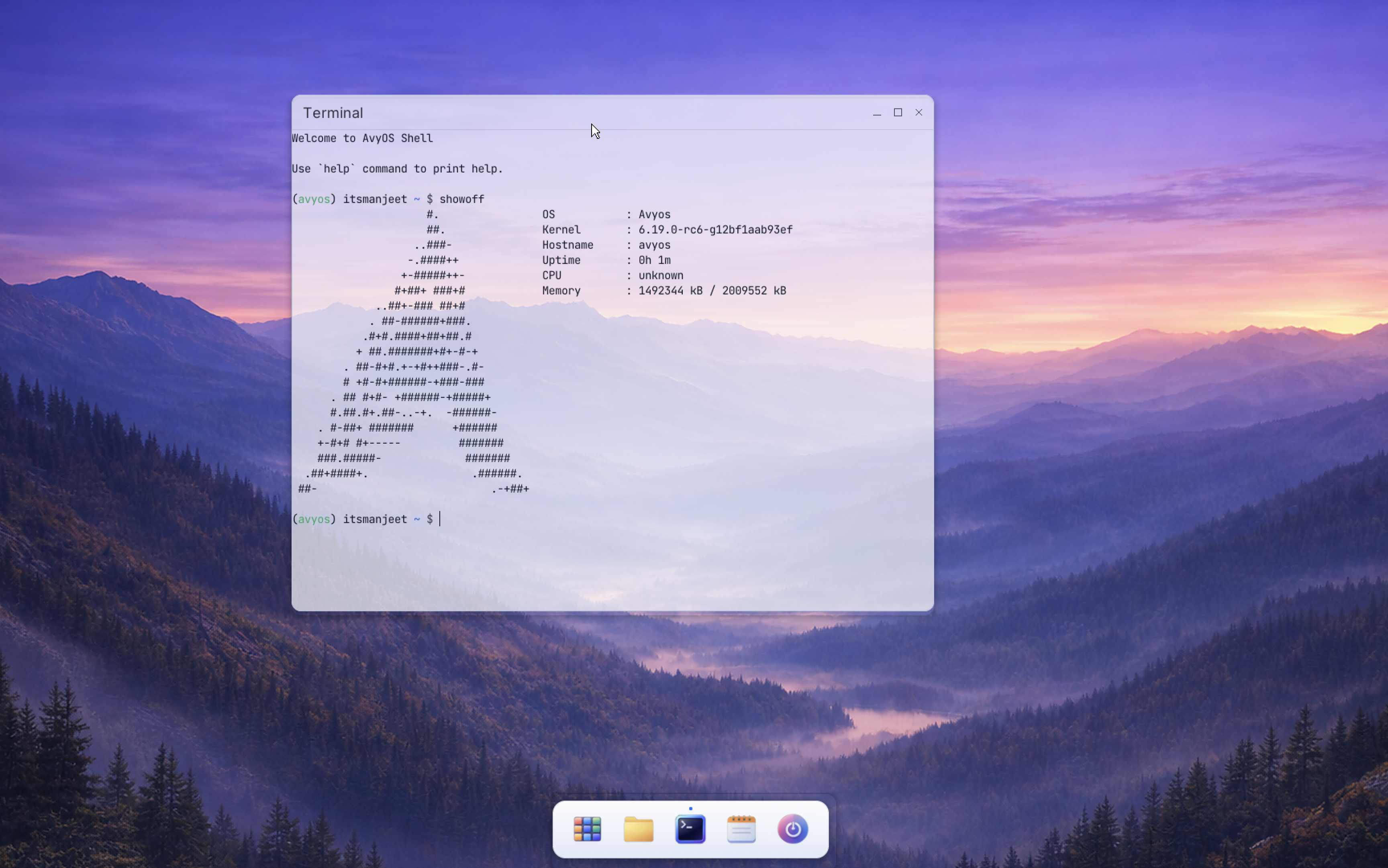
Open the terminal and run:
help
This lists the available built-in commands and utilities shipped in the OS core.
Managing the Linux distro layer
Use the distro command to manage the optional Linux distro compatibility layer.
- Command reference:
cmd/distro.md
7) Show off avyos 🙂
There’s a showoff command intended to help you share your setup on community forums:
showoff
Use it to produce a neat summary/screenshot-friendly output when posting about avyos.
8) Feedback and issues
If something looks wrong, crashes, or doesn’t behave as expected, please open an issue:
- https://github.com/itsManjeet/avyos/issues